Since we're hosting external modules for brands, we've created a way of working to make it easier to change or add languages for the modules that exist. This way of working will be the same for each module hosted.
Before a language is added, a folder needs to be created in the CMS to 'host' the language files. In the CMS a specific folder is created to host language files and other media files for all External Modules. This folder can be found under Media > For This Site > External Modules.
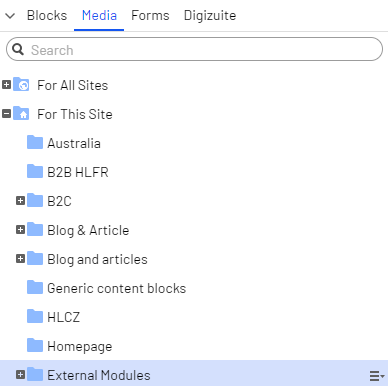
Each module will have their own folder and within that folder a folder language folder needs to be created. In the case of the "Sensity Simulator" module, this looks like this.
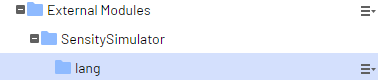
Languages in the form of JSon files, can be uploaded in that folder. Below an example of such a language file is shown.
{
"labels": {
"what_do_i_see": "Wie sehe ich",
"how_will_i_look": "Wie sehe ich aus",
"with": "mit",
"product_sensity2": "Sensity 2",
"product_fast": "Sensity Fast",
"product_shine": "Sensity Shine",
"product_dark": "Sensity Dark",
"when_i_am": "Ich bin",
"indoor": "Drinnen",
"outdoor": "Draußen",
"compare": "Vergleichen",
"disclaimer": "Haftungsausschluss: Nur zu Illustrationszwecken",
"now_loading": "Wird geladen...",
"regular_lens": "Herkömmliches Brillenglas"
}
}
When uploading a language file to the CMS, make sure to name it in an understanding matter. For instance for Germany, it's good to use "de.json". In case of countries with multiple language, like Switzerland, use "de-ch.json" and "fr-ch.json".
Once a language is added, make sure the Host External Module Block is translated to that specific language and the "Override language parameter" under "Settings" is set to that language code. It uses the same code as was used for the language files. So for Germany, use "de" or for Switzerland use "de-ch" or "fr-ch" depanding on which language is being set.