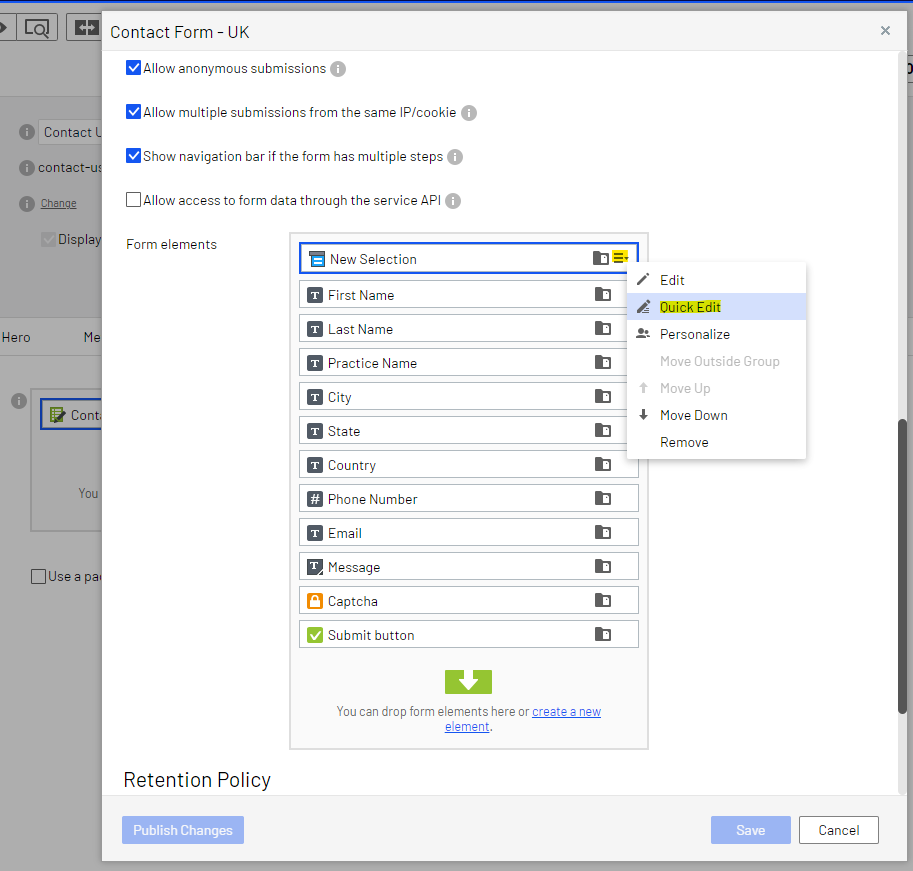
Open the contact page, and then use "Quick edit" to open the block (please note: if the block is not editable due to a connection to the Master version, then reach out to the support team).
Scroll down to the Form elements as shown below, and edit these by using the "Quick Edit" functionality again:
Note: the block names "Email", "First Name", "Last Name" should never be changed, otherwise the form cannot be sent.
If a new field is needed, click "Create a new element" at the bottom, select a type and create a label. After it has been created, the block can be dragged into the right spot.
How to edit the recipient and thank you-message
Open the contact page and use the "Edit" option to open the form.
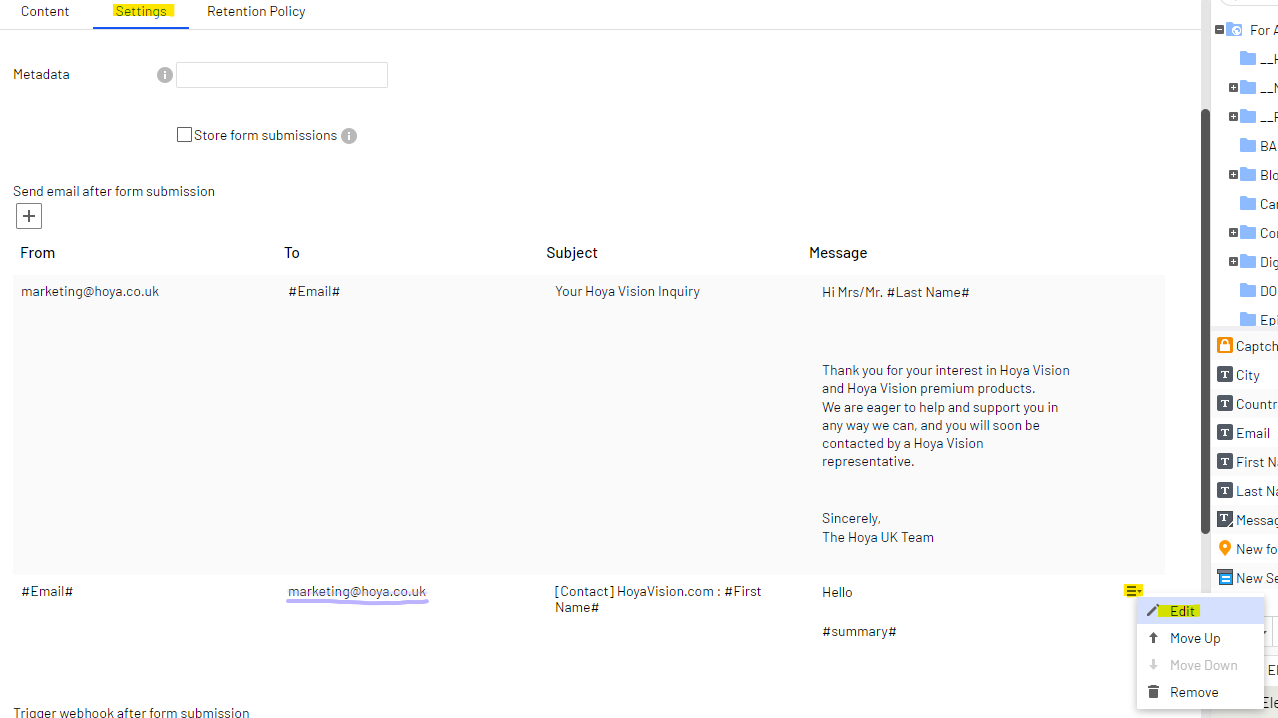
Click the second tab "Settings" and scroll down to the "Send email after form submission" settings:
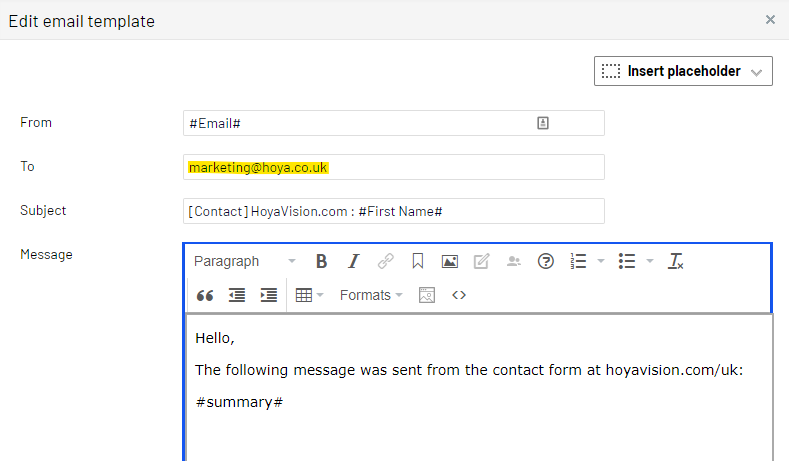
The #Email# tag converts to whatever email address the sender submitted. The "To" in the second entry sends the email to the Hoya representative. Click "Edit" to change the "To" email address: