In general
Would you like to modify an existing piece of content on your website? Follow these steps to make your changes:
- Open your language version of the page in Optimizely. If you have trouble to find it, you can use this guide; Finding a page.
- In the grey area at the top you can make changes to the page title or url of the page (NOTE: never change the url of a live page without setting up a redirect).
- Use the tabs "Hero" and "MetaData" to make any changes to the hero banner image/text or the meta data of the page.
- For changes in the content itself (for example correcting a typo or changing an image), use the Content tab.
- Hover your mouse over the correct content block and click the hamburger menu icon next to the block you wish to edit.
- Choose the option "Quick edit" in the dropdown menu to easily edit the content.
- After finalizing your edits, you can save or directly publish your edits.
Please note: if this block is also used on other pages, the content there will change too.
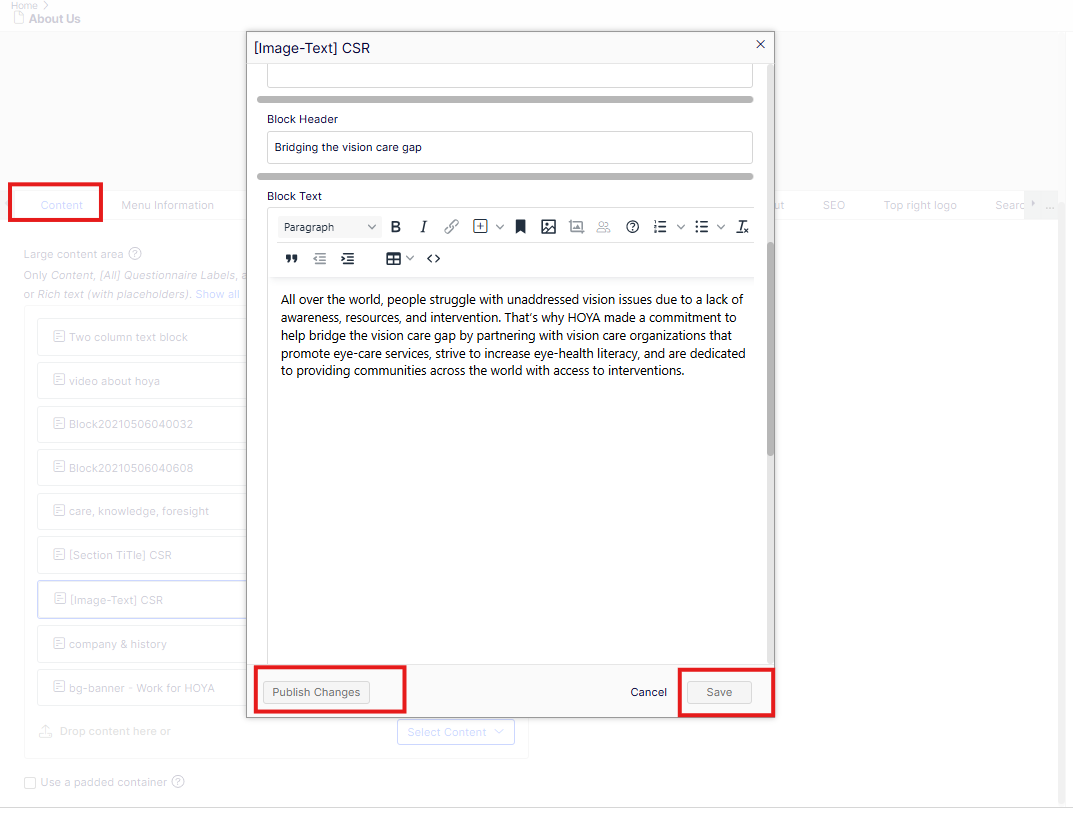
Modify Existing Content - specific parts: