- How to create a new page?
- Choose which location your new page should have. For example: a subpage of the homepage or is it a subpage of another existing page? Select this page first.
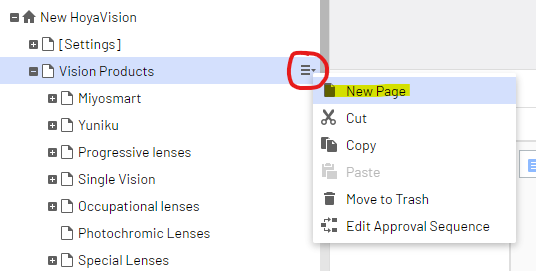
- Click the hamburger menu icon that will appear on the right, and choose "New Page". *Please do not use copy-paste for page creation
3. Choose a Overview: Page Types. You will most likely need a Content Page or an Overview Page, but please check the linked information about Page Types to be sure. Your page is now created and visible in the site tree. It is not possible to change the page type afterwards, you will need to create a new page then. So choose your page type wisely.
4. In the top grey settings bar, you can change the Page title (Name), the url of the page (Name in URL) and whether to display or hide it in the navigation menu. Please note that the url should be SEO-friendly and cannot be changed easily at a later moment.
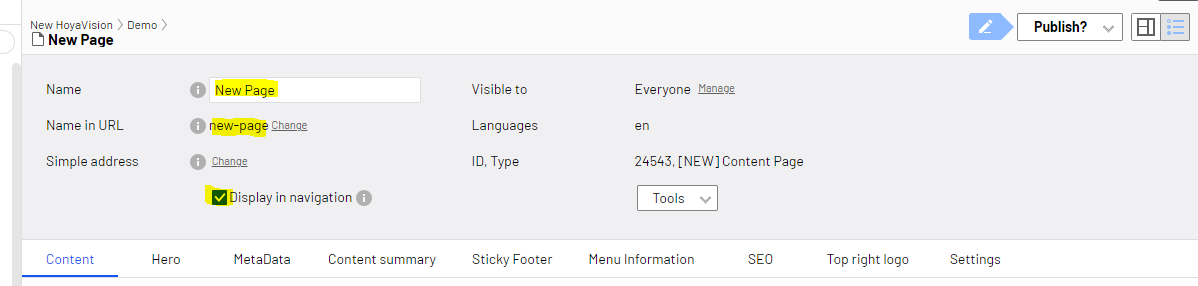
You can now fill out the page by using the following tabs:
Content
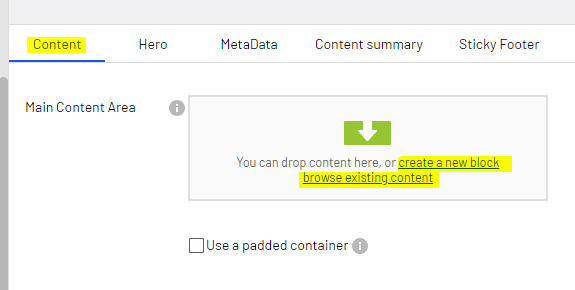
Here you can create the building blocks of your page. There are two options:
- Create a new block
- Choose an existing block, where you will see the site tree and all the blocks you can choose from.
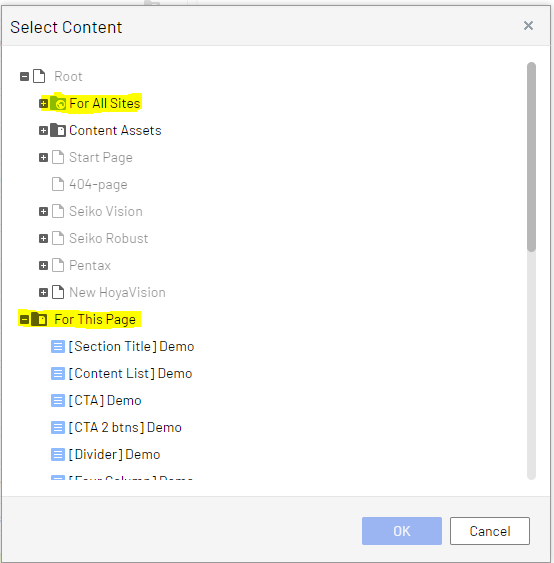
When choosing an existing block you can find reusable content that is intended for all pages under "For All Sites". If your content is unique to this page, you can use "For this page" (at the very bottom). After you just created a page, "For this page" will still be empty. Note that if an item is greyed out, it is not a suitable item and you can't select it.
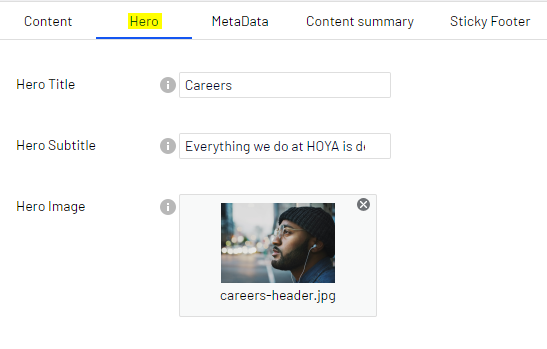
Hero
The Hero is the top banner image or video (video is only available on a Content page and not for a Overview page) on your page. It has an optional header title and subtitle.
The image is automatically cropped for tablet and mobile displays. An image size of 1218x981px is recommended.
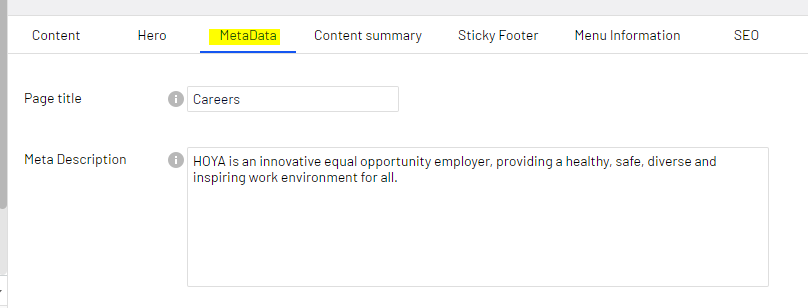
MetaData
Make sure to fill out the MetaData fields to make it easier for visitors to find your page with Google. In the Content Playbook Complete version you will find SEO guidelines.
The other tabs can be filled out if it is relevant for your content. The Content Summary is used for the Content List.
After completing the content, make sure to publish your new page to make the changes visible on your live website.